TL;DR
- Context: Windows 10 is no longer supported (Oct. 14, 2025). Rather than paying for support or buying new PCs for Windows 11, Linux lets you extend the life of your machines, with no licences, less telemetry and more control.
- Linux's key advantage: you can choose the interface (desktop environment) best suited to your employees, instead of being stuck with a single ergonomics.
The 5 environments in one sentence each:
- GNOME: a modern, streamlined interface in the spirit of macOS. + Sober, professional, search-centric. – Less customizable, a bit resource-hungry.
- KDE Plasma: very close to Windows 10/11. + Ultra-configurable, feature-rich, ideal for former Windows users. – Lots of options, sometimes a little complex.
- XFCE: Windows 7 style, very lightweight. + Perfect for old PCs and less tech-savvy audiences. – Dated look, few modern "gadgets."
- Cinnamon: a user-friendly "Windows-like" desktop (Linux Mint). + Almost seamless transition from Windows 7/10. – Less flexible than KDE, cautious evolution.
- i3: a tiling window manager for experts. + Keyboard productivity, ultra-lightweight. – Unusable for the general public, requires configuration.
For a Quebec SMB:
- Choose Cinnamon or KDE if your people are coming en masse from Windows.
- Choose GNOME for a more modern image or an audience used to Mac/design.
- Choose XFCE to revive old hardware or for an audience that is very uncomfortable with computers.
- Keep i3 as an option for a few power users only.
Final thought:
The end of Windows 10 can become an opportunity: with the right Linux environment and a minimum of support (pilot, short training, help desk), you keep your PCs longer, reduce costs and gain autonomy… without sacrificing ergonomics.
In this article
- Introduction: end of support on 14 October 2025, and a hard choice for businesses.
- 1. GNOME – A streamlined, modern experience (reminiscent of macOS): the streamlined experience that ships by default on Ubuntu, Fedora and Debian.
- 2. KDE Plasma – Customizable and powerful (the equivalent of the Windows desktop): the customisable heavyweight, often described as the counterpart to the Windows desktop.
- 3. XFCE – Light and fast (the classic Windows 7-style interface): the veteran: light, fast and stable, in the spirit of a classic interface.
- 4. Cinnamon – A user-friendly "Windows-like" desktop for the accustomed: born in 2011 for Linux Mint, for anyone who wants a traditional desktop.
- 5. i3 – The tiling window manager for advanced users: the tiling approach, radically different, for advanced users.
- Practical advice for migrating to Linux in a Quebec SMB: a substantial project that needs human preparation as much as technical.
- Conclusion: modernise the fleet, save money, and gain technological autonomy.
Introduction
Windows 10 reached end of support on October 14, 2025, leaving many businesses and users facing a difficult choice: paying for costly extended support, buying new hardware to move to Windows 11, or exploring other options. Many PCs that are still perfectly functional do not meet Windows 11's strict hardware requirements (recent processor, TPM 2.0, etc.), which would risk prematurely sending these computers to the scrap heap. However, this is not inevitable: Linux offers a durable, affordable and high-performing alternative to extend the life of these machines and modernize your IT fleet without investing in new PCs.
For Quebec professionals and SMBs, migrating to Linux offers several concrete advantages. On the one hand, Linux systems and their updates are free, eliminating software licensing costs. On the other hand, Linux is less resource-hungry than modern Windows systems, which makes it possible to install a fast and secure system on older hardware. This can give a second life to Windows 10 computers that were struggling or becoming incompatible with Windows 11. Finally, Linux is far more respectful of user privacy: no ads built into the start menu, no intrusive telemetry by default, and full control over updates. All of these elements can improve the day-to-day experience for you and your employees.
One of the common concerns about Linux relates to the desktop environment—that is, the graphical interface and the system's general ergonomics. On Windows or macOS, the environment is imposed (you get the Windows interface or the Mac one, full stop). With Linux, by contrast, there is a rich and varied choice of desktop environments and window managers, suited to different preferences and needs. This diversity is one of Linux's strengths: you can select the interface that will best suit your users, whether they are used to Windows, to macOS, or eager to customize. It may seem confusing at first, but rest assured: whatever your profile or that of your employees, there is a Linux environment made for you.
In this article, we present five of the most popular Linux desktop environments or window managers: GNOME, KDE Plasma, XFCE, Cinnamon and i3. Each offers a different approach in terms of ergonomics and user experience. For each environment, we will review its characteristics, its level of familiarity compared with well-known commercial interfaces (e.g. KDE Plasma vs Windows 11, GNOME vs macOS), as well as its strengths and limitations from a professional-use standpoint. The goal is to help you choose a Linux interface suited to your business, based on the hardware you have available and your employees' level of familiarity with modern interfaces. We will conclude with practical advice for successfully migrating to Linux in an SMB, so that it goes smoothly and without friction, in an educational and serene spirit.
A few preliminary definitions: a desktop environment is a coherent set comprising a complete graphical interface (taskbar, menus, windows, icons, etc.) and integrated tools. GNOME, KDE Plasma, XFCE and Cinnamon fall into this category. Conversely, a window manager like i3 is more minimalist: it handles only the placement and arrangement of windows on the screen, without necessarily providing a "turnkey" desktop with preconfigured bars and menus. A pure window manager often requires more manual configuration, but offers incomparable lightness and speed. Keep this in mind as you read the sections below: i3 represents a more radical approach, prized above all by advanced users, whereas the other environments offer a complete, ready-to-use interface right from installation.
Without further ado, let's move on to an overview of these Linux desktop environments, their respective ergonomics and the equivalences we can draw with Windows or macOS.
1. GNOME – A streamlined, modern experience (reminiscent of macOS)
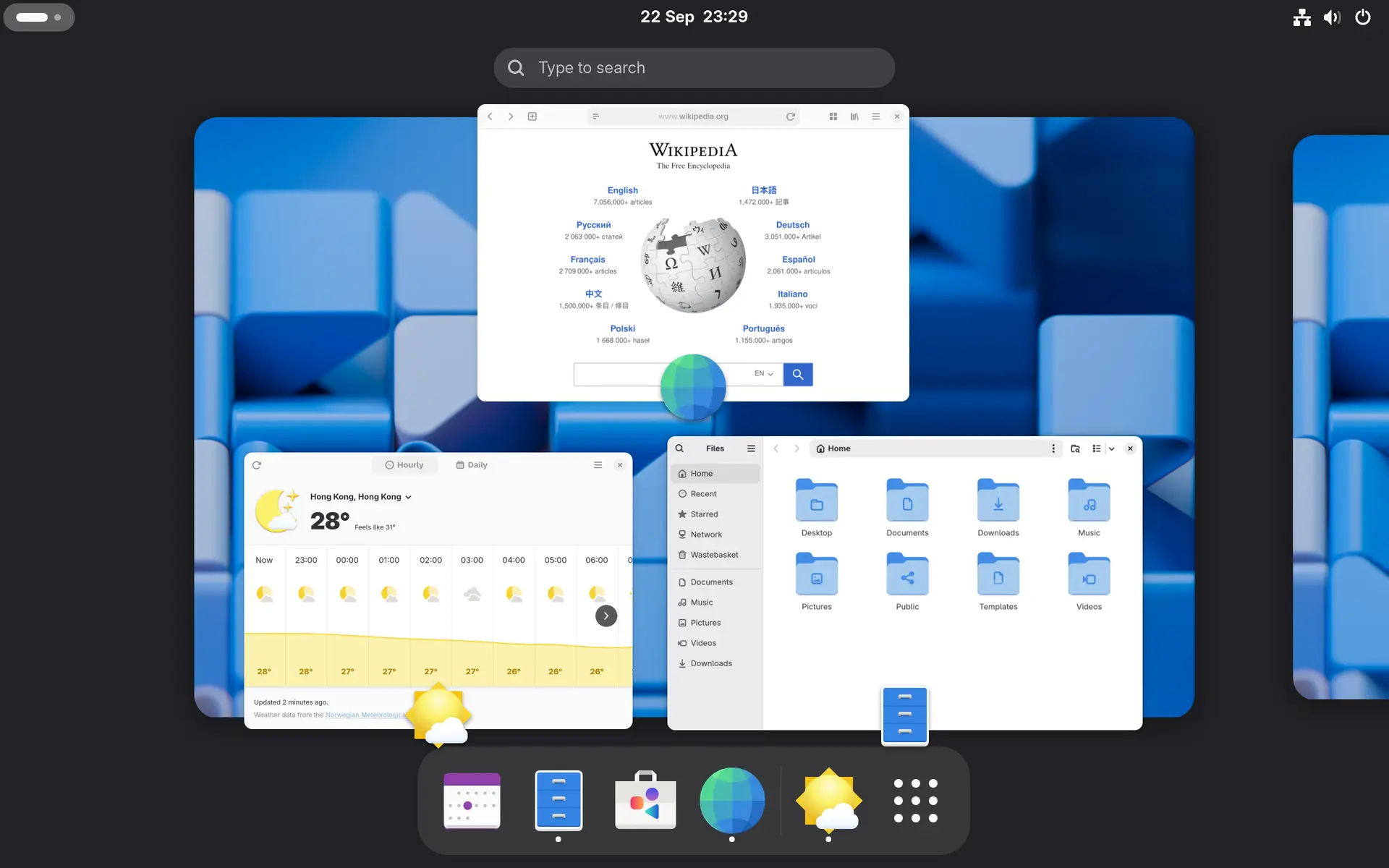
GNOME is one of the most widespread desktop environments in the Linux world. Chosen by default on major distributions such as Ubuntu, Fedora or Debian, it benefits from broad community support and regular updates. GNOME stands out for a streamlined, minimalist design philosophy, focused on ease of use and on concentrating on the essentials. The GNOME interface, called GNOME Shell, breaks with the classic Windows paradigm: there is no traditional "Start" menu and no taskbar full of icons permanently visible. Instead, GNOME offers an activities overview (Activities Overview) that opens by pressing the Super (Windows) key or by moving the cursor to the top-left corner. This view displays your open windows as thumbnails, a side dock with your favourite applications, and a central search field to launch applications or documents with a few keystrokes. The GNOME desktop seeks to eliminate distractions: you will see only a single top panel (containing the time, system indicators, and a system menu) and no icons on the wallpaper by default. This pared-down approach aims to improve productivity by inviting the user to focus on their tasks rather than on organizing the screen.
Ergonomics and user landmarks: For a user coming from Windows, GNOME's ergonomics may require a short adaptation period. You are encouraged to make more use of the keyboard and search to open your applications (similar to the way you use Spotlight on macOS), and to take advantage of virtual desktops. GNOME dynamically creates several workspaces across which you can distribute your windows, a bit like macOS Spaces. Navigating between windows and applications is done via the activities overview or with Alt+Tab as on Windows, although the absence of a visible taskbar may initially be disorienting. GNOME also encourages the use of touch gestures on a touchpad (for example, a four-finger swipe upward opens the overview, much like the Mission Control gesture on Mac). The result is a modern, fluid user experience, with sober animated transitions and elegant effects. Many professionals appreciate GNOME for its "sober and serious" side: the interface looks polished and coherent, with no garish colours or untimely pop-ups.
Comparable to macOS? GNOME is often compared to macOS for its streamlined side and its productivity orientation. Like macOS, GNOME favours a uniform design, without too many customization elements exposed to the end user—people sometimes speak of the "Apple style" in GNOME's philosophy. For example, GNOME (just like macOS) does not natively offer tons of options to change the appearance or behaviour: everything is designed to work properly from the start, with a well-defined logic. GNOME's fixed top panel is reminiscent of the Mac menu bar, although it does not serve exactly the same functions (GNOME does not use a global menu for applications). Likewise, GNOME includes an application dock (visible in the Activities view or pinned to the side depending on the settings, as Ubuntu does) that evokes the macOS Dock for launching or switching between applications. Another common point: GNOME favours drag-and-drop and subtle animations, reinforcing a sense of polish in the interface. Of course, there are notable differences: macOS keeps a Finder with a column or icon presentation, whereas GNOME uses Nautilus (Files), which is simpler in its views. macOS has an Apple menu and elaborate context menus, where GNOME centralizes a lot through its activities overview and a single system menu. But overall, a user accustomed to macOS will find GNOME a relatively familiar experience in terms of the absence of a "Start menu" and the emphasis placed on search and virtual workspaces. In fact, some claim that GNOME even handles certain aspects better than macOS: for example, virtual desktop management under GNOME is very fluid and unlimited, whereas macOS imposes a finite number of Spaces. In short, GNOME offers on Linux a "post-Windows" ergonomics that will appeal to fans of modern simplicity. It is to Linux a little of what macOS is to the Mac: an environment designed to be elegant and streamlined, sometimes at the cost of limited customization.
Strengths of GNOME:
- Streamlined and coherent interface: GNOME offers a clean visual experience, free of clutter. Ideal for focusing on your work, with a modern design that prioritizes productivity.
- Ease of use: after the adaptation phase, GNOME proves intuitive for everyday tasks. The intensive use of search and shortcuts can even speed up your workflow (for example, typing a few letters is enough to open any application).
- Rich application ecosystem: Many professional applications (the LibreOffice office suite, web browsers, mail clients, etc.) integrate well with GNOME and respect its streamlined style. Most distributions offer a graphical software store (GNOME Software) for easily installing software.
- Substantial community and support: Because GNOME is very popular, there is a wealth of online resources, mutual-help forums and extensions to add features. The major companies of the Linux world (Red Hat, Canonical, etc.) also contribute to its development, a guarantee of longevity.
- Modular extensions: Although standard GNOME limits customization, you can add GNOME Shell extensions (small modules) to reintroduce missing elements or ones tailored to your preferences (e.g. a classic "Applications" menu, a weather indicator in the panel, etc.). This allows a business to adjust it to its needs without making the whole thing more complex.
Limitations of GNOME:
- Learning curve for "Windowsians": As mentioned, a user accustomed to Windows for years may be disoriented at first. The absence of the traditional start menu, of minimized windows visible in the taskbar, etc., requires slightly rethinking how to navigate. You have to accept changing certain habits (for example, using virtual desktops and the built-in search engine). This is not insurmountable—many newcomers get used to it within a few days—but it is something to plan for in change management.
- Restricted customization by default: GNOME takes a fairly strict view of its interface "as it should be." Without installing extensions or the GNOME Tweaks tool, you cannot deeply modify the appearance or behaviour (e.g. moving the bar to the bottom, changing the icon theme, etc., are not offered as standard). This certainly prevents novice users from "breaking" their interface, but advanced users may feel limited compared with KDE, for example.
- Higher hardware requirements: GNOME is a modern environment with animated effects and an imposing software architecture. It has the (deserved) reputation of being relatively hungry for RAM and graphics resources. In practice, it will run perfectly on any recent PC, but on a 10-year-old PC with 2 GB of RAM it could be a little slow. For very old or low-powered machines, a lighter environment (XFCE, or even i3) will be preferable for a fluid experience.
- Less familiar for expert Mac users: Paradoxically, while GNOME shares macOS's spirit of simplicity, it lacks certain specific Mac features (for example, the application menu bar at the top, or the advanced drag-and-drop management between apps in Dock style). A Mac user very attached to these details will not find them identical under GNOME. Nevertheless, these differences have little impact on most everyday professional uses.
All in all, GNOME will suit organizations ready to adopt a modernized, streamlined interface, close in spirit to the Mac world. It is a wise choice if you value visual consistency, stability (GNOME is mature, with more than 20 years of existence) and you are prepared to support your teams during the initial learning phase. GNOME can make a positive impression with its polished appearance during a demonstration: it will give a "cutting-edge" image of your Linux workstation, compared with the more classic aesthetic of Windows.
2. KDE Plasma – Customizable and powerful (the equivalent of the Windows desktop)
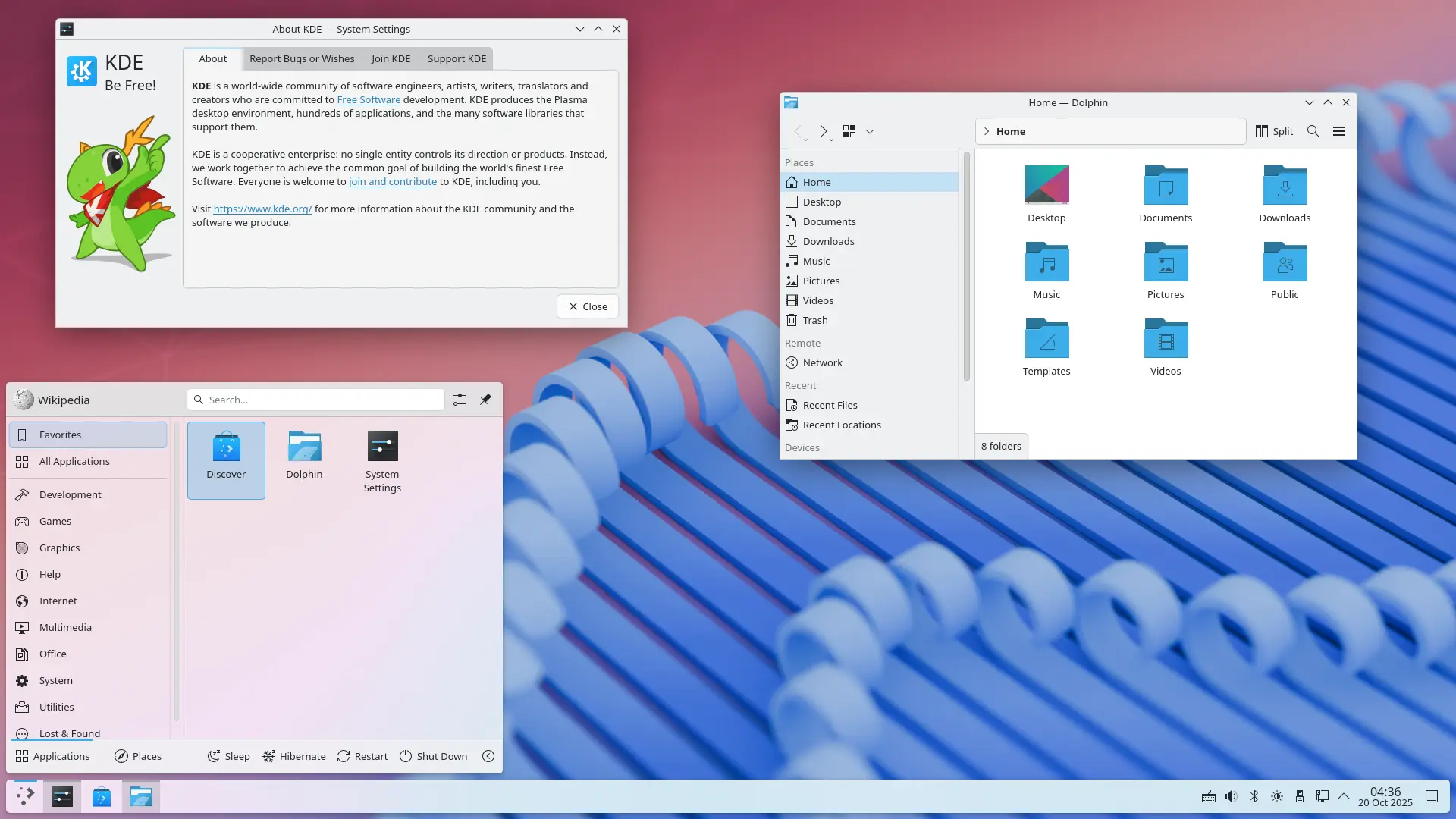
KDE Plasma is the other heavyweight among Linux environments, often presented as the counterpart of the Windows desktop in terms of appearance and features. If GNOME aims to be minimalist, KDE Plasma takes the opposite stance by offering a maximum of customization options and integrated tools. By default, Plasma adopts a classic interface close to Windows 10/11: a taskbar at the bottom with the main menu on the left (KDE icon or start menu depending on the distribution), pinned application icons, system indicators on the right (sound, network, notifications, time) and windows with a title bar and traditional buttons to minimize/maximize/close. For a user arriving from Windows, the KDE environment will immediately seem visually familiar. In fact, many people say that KDE Plasma is what Windows could have been if it were fully customizable by the user. Everything in KDE can be configured: colours, themes, position and size of panels, start-menu behaviour, keyboard shortcuts, window effects… This extreme flexibility is one of its greatest assets in a professional setting, because it allows the interface to be finely adapted to the needs of users or teams.
User experience and ergonomics: Out of the box, an employee accustomed to Windows 10 or 11 will not feel out of place with KDE Plasma. Opening the start menu (renamed the Applications menu or Kickoff) displays the list of programs and a search bar, as on Windows. The logic of window management (button to minimize to the bar, alt-tab to switch, etc.) is the same. KDE even provides by default a file explorer called Dolphin that recalls the Windows Explorer but is more powerful (it offers tabs, a tree-based navigation panel, file preview, and even a dual-window mode to display two folders side by side in the same window—a feature Windows does not have natively). The overall ergonomics of KDE are very rich: the KDE developers often add clever little features to improve productivity. For example, KDE includes KRunner, a quick-launch bar (Alt+Space) that lets you search not only for applications, but also for documents, do instant calculations, unit conversions, launch a web query, etc., a bit like Windows's PowerToys Run or Spotlight on Mac, but more extensible. Another example, KDE's Spectacle screenshot tool is extremely complete compared with the Windows Snipping Tool: you can annotate, copy the image directly to the clipboard or save it with a predefined name, etc. KDE also includes a clipboard manager (history of copied items) called Klipper, something Windows only offers with a history limited to 25 entries. All these little extras show that Plasma targets so-called power users—those who like to get the most out of their tool—while remaining immediately usable by ordinary mortals.
Comparison with Windows 11: KDE Plasma is undoubtedly the Linux environment closest to the Windows interface, to the point that the transition can be almost seamless for a user. Compared with Windows 11, several points can be highlighted:
- Appearance and layout: By default KDE has a start menu in the bottom left, whereas Windows 11 has centred it—but you can also centre the KDE menu or leave it on the left to taste. Windows 11 brought a new look (rounded corners, Fluent Design transparency effects); KDE Plasma has long offered clean themes with transparency (the default "Breeze" theme, light or dark) and you can install many other themes with one click. Visually, a well-configured KDE can look almost line for line like Windows 10 or 11, including with a tiled start menu if you wish (there are downloadable menu alternatives for Plasma that mimic the old Windows 7 menu or the Windows 10 menu with tiles, according to preference). This ability to theme the appearance means that some Windows 11 designs even seem inspired by KDE—for example, Windows 11 reintroduced desktop widgets and a simplified taskbar, things that Plasma had long had and lets you freely customize.
- Customization and settings: This is where KDE far surpasses Windows 11. Under Windows, many options are either absent, or hidden in the registry, or require third-party utilities (e.g. to move the taskbar to the top or to the sides, which is no longer officially supported on Windows 11). With Plasma, any panel can be moved (top, bottom, left, right), you can have several panels, you can resize the start menu as you like, add widgets (KDE offers many: weather, stock quotes, hardware controls, etc., similar to the Windows gadgets of the Vista/7 era). The user has access to a very complete configuration centre (a single "System Settings" application that brings together as many possibilities as the Control Panel + the Windows Settings app combined, or even more). This abundance of settings can intimidate a novice user, but the advantage is that a curious professional can adjust their work environment exactly as they wish. For example, on Plasma you can configure the action of the screen corners (active corners) to launch commands or display windows, you can choose from various transition animations, etc. In business, this also means that an administrator can preconfigure a Plasma so that it strongly resembles Windows or so that it already includes certain shortcuts, making the employees' transition easier.
- Productivity and integrated features: Windows 11 introduced Snap Layouts (the ability to easily arrange windows by quarter-screen, etc.), a welcome productivity feature. KDE offers the same thing (windowing by quarter or half is native via the Meta+arrows key) and goes further by even allowing the use of a tiling window manager in parallel (there is a script draft mode in KWin, KDE's window manager, to add advanced tiling, or you can combine Plasma with i3 if you wish). Plasma offers as standard tools such as Konsole (advanced terminal with tabs and split, useful for technicians), Dolphin mentioned above, Okular (annotatable PDF reader), Kontact (PIM suite with mail and calendar) or Kdenlive (video editing). Of course, you can install the equivalent under GNOME or other environments, but KDE has this suite of well-integrated apps from the start. The result is a very complete out-of-the-box environment. Some of these applications can advantageously replace Windows software: e.g. Kate (text editor) is far more powerful than the Windows Notepad, KMail can replace Outlook for standard mail, etc. In short, with Plasma, the user feels they have all the tools at hand, where Windows sometimes requires downloading utilities to fill its gaps.
- Performance: An aspect often mentioned by users: Windows 11 can be heavy or slow on certain PCs, whereas KDE Plasma has become remarkably light and fast despite its features. Some feedback notes that a stripped-down Windows 11 uses as much or more RAM as a complete KDE Plasma. This is explained by Plasma's optimization and the ability to disable/uninstall what you don't use. Thus, on the same hardware, you might find Plasma more responsive than Windows 11, especially if the latter is loaded with background applications. On older machines, Plasma runs properly with as little as 4 GB of RAM (8 GB being comfortable), whereas Windows 11 struggles below 8 GB. In short, KDE Plasma offers the equivalent of Windows, without Windows 11's customization limitations and often with more lightness.
Strengths of KDE Plasma:
- Interface familiar to Windows users: The transition from Windows happens smoothly, thanks to an almost equivalent presentation (menu, bar, systray). Your employees will quickly find their bearings, which minimizes the training required.
- Ultra-customizable: This is the strong point of KDE. You can adjust almost every detail of the desktop. Want a Windows 7 look or, conversely, a unique style for your company? Everything is possible via the settings or downloadable themes. This flexibility makes it possible to create a tailor-made environment, for example a streamlined "kiosk" station for a specific use, or conversely a desktop loaded with tools for a developer.
- Feature richness: KDE is packed with integrated features that improve productivity: powerful search with KRunner, a very complete file manager (Dolphin), a productivity multiplier (advanced copy-paste, bulk file renaming, instant document preview), etc. Many annoying things under Windows find a simple solution under KDE (e.g. opening a .zip archive directly like a folder, thanks to the Ark tool, avoiding having to unzip it manually).
- Active community and frequent updates: KDE has been in development for over 20 years and continues to evolve rapidly. Plasma updates come out every few months, bringing optimizations and new features. The user community is passionate and responsive in the event of a bug. Moreover, players such as Blue Systems, Valve or major distributions support KDE (Valve's Steam Deck uses KDE Plasma in desktop mode, proof of its modernity and stability).
- Hardware adaptability: Plasma runs just as well on an ultrabook as on a multi-screen workstation. It handles high resolution very well (4K, HiDPI screens) with good scaling support, an area where Windows sometimes stumbles. Plasma is also modular: on a low-powered machine, you can disable effects to lighten it, or even refrain from launching certain components. This technical flexibility is an advantage if your fleet is heterogeneous.
Limitations of KDE Plasma:
- Complexity of the configuration interface: The flip side of all this customization is that KDE's configuration menus are very extensive. A novice user could be overwhelmed by the quantity of options. For example, in the display settings, you will find settings for the compositor effects, the multi-screen layout, etc., where Windows offers only the minimum. So care must be taken not to "drown" the average user under too many choices. In practice, the default interface works very well without changing anything, but some might be tempted to explore everything and get lost. Basic training or an internal manual presenting the 4-5 main settings can help.
- Risk of minor bugs: KDE Plasma being very modular, it can sometimes suffer from small bugs or regressions on certain versions, more so than GNOME, which is very static. Historically, Plasma had periods of instability (notably during the Plasma 4 -> 5 transition). However, the recent 5.25+ versions and the new 6.x branch aim for robustness. It can still happen that certain less common features are temperamental on a given distribution (e.g. Wayland mode was for a time less mature than under GNOME, causing multi-screen issues). In a professional context, it is advisable to use a Plasma LTS version or one well tested by your distribution (such as KDE Plasma 5.27 LTS in Kubuntu 22.04+, for example) to guarantee stability.
- Too many options for some users: Not all employees are meant to customize their workstation. For those who just want it to "work" and never touch the settings, KDE may seem to offer features they will never use. This is not really a problem (they can perfectly well ignore these options), but there is a fear that they might change something inadvertently. A business approach could be to predefine a fairly locked-down KDE profile for standard users, while leaving tech-savvy users free to customize. KDE allows this thanks to administration tools (you can deploy standardized config files).
- Less "modern" image: This is subjective, but KDE's classic appearance (start menu, desktop icons, etc.) may seem less innovative or less "design-forward" compared with GNOME or macOS. For companies that want to convey a trendy or futuristic image, KDE may be perceived as too traditional visually. However, with the right themes, Plasma can be very aesthetic—it just takes a little web-design work to transform it according to your visual identity.
In summary, KDE Plasma is an excellent choice for SMBs whose employees are mostly accustomed to Windows, because it minimizes the ergonomic break while offering increased possibilities. It is the recommended environment if you want your users to quickly find their habits again (right-click on the desktop, recycle bin, an explorer similar to Windows) and if you like the idea of being able to adjust the interface to your business needs. For an internal IT department, KDE is an ideal playground for creating an optimized user experience. Its level of polish makes it a serious competitor to proprietary environments: some people, after using Plasma, testify that they no longer envy Windows 11 at all in terms of interface, so complete is KDE.
3. XFCE – Light and fast (the classic Windows 7-style interface)
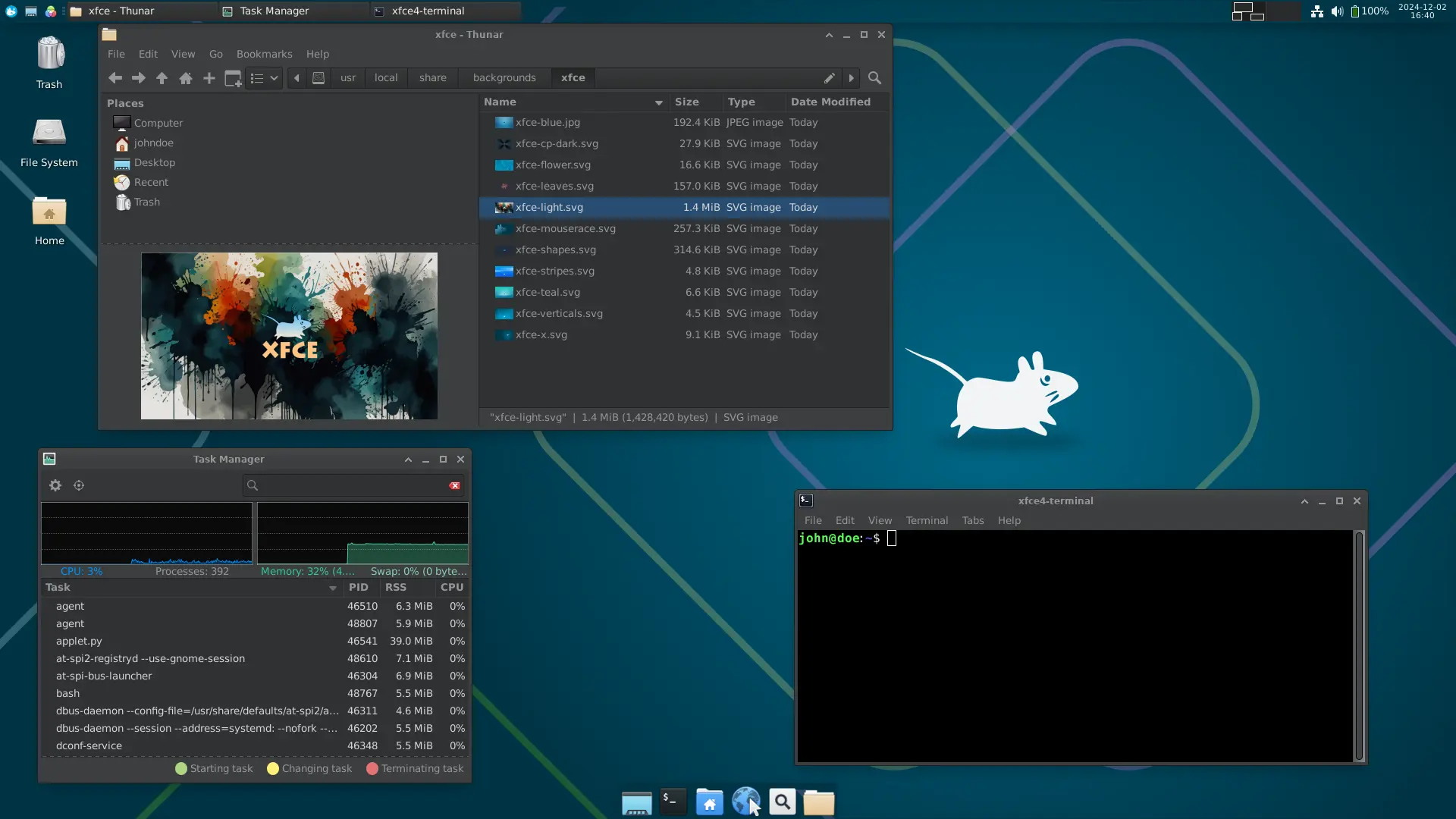
XFCE is a historic desktop environment of the Linux world, renowned for its lightness, speed and stability. If GNOME and KDE represent modernity, XFCE embodies "old-school" simplicity—in the good sense of the term. It offers an interface very close to that of the classic versions of Windows (Windows 95 up to Windows 7) with a tree-based start menu, a taskbar (usually at the bottom), shortcut icons, and very few superfluous graphical effects. XFCE's main goal is to be resource-thrifty so it can run on modest or old hardware, while remaining user-friendly and complete. This makes it an ideal candidate for recycling older Windows 10 PCs that would struggle with Windows 11, or for equipping workstations without worrying about performance (virtual desktops, lightweight terminals, etc.).
Ergonomics and user feel: XFCE is aimed at those who like efficiency without frills. From the very first use, a Windows user will feel on familiar ground: the Whisker menu (XFCE's applications menu) is an equivalent of the start menu with a list of applications classified by category and a search field. The taskbar displays open windows as aligned buttons, and you can pin launchers for frequently used applications, as on Windows 7. Right-clicking on the desktop brings up a context menu allowing you to launch applications or create files—a handy feature you won't find by default under GNOME or Windows 11 without customization. XFCE favours a traditional approach to the desktop: you can place file or folder icons on the desktop, change the wallpaper easily, add extra panels or plugins (mini-applications) on these panels. It includes the bare essentials: a file manager (Thunar, simple and fast), a text reader, an image viewer, etc., but not a plethora of preinstalled software. In terms of customization, XFCE is more flexible than GNOME but less so than KDE: you can change the themes, the panel layout, the fonts, but it does not have as extensive a widget infrastructure as KDE. This is generally enough to adapt the appearance a little to each person's tastes (there are, for example, themes that mimic the appearance of Windows 98 or, conversely, more modern themes).
Performance and compatibility: One of XFCE's great advantages is its low memory and CPU footprint. Where GNOME or KDE can use 1 GB of RAM or more at idle, XFCE often makes do with 500 to 600 MB, or even less. It puts very little strain on the processor and does not need powerful graphics acceleration. This means that an old PC with 2 or 3 GB of RAM can run smoothly under XFCE, where it would be on its last legs under Windows 10. In a professional context, this makes it possible to extend the lifespan of older workstations, or to use small PCs such as a Raspberry Pi or thin clients as office workstations with XFCE. Moreover, XFCE's simplicity makes it very stable: it evolves slowly and the risks of crashes or major bugs are reduced. Many Linux distributions rely on XFCE to offer a "lightened" variant (e.g. Xubuntu for Ubuntu, Linux Mint XFCE, Fedora-Xfce spin, MX Linux XFCE, etc.), proof of the confidence in this environment.
Comparison with the classic Windows experience: XFCE can be considered the equivalent of a "light" Windows 7. The interface is austere compared with 2025 standards, but efficient and familiar. Someone used to Windows XP/Vista/7 will find almost the same logic: a well-organized programs menu, windows with simple borders, a notification area for background applications, etc. Indeed, visually, XFCE has no transparency, no pronounced drop shadows, no complex animations—just like the classic Windows desktop before Windows 10. Some users prefer this sober look, which they find more readable and professional (no effects that could be perceived as "gadgets"). A small caveat on the appearance side: XFCE can look a little old-fashioned or "rustic" to some, especially fresh out of installation. However, you can improve it by applying more modern themes (there are some to give it a more flat-design look, or conversely to dress it up macOS-style, etc.). But even without that, XFCE perfectly fulfills its functional role, just as an uncustomized Windows 7 remains pleasant to use for work.
In everyday use, XFCE offers great responsiveness: menus open instantly, windows appear without latency, which provides a sense of speed. This lightness can contribute to user satisfaction, because the system responds on a dime, including for simple tasks (opening a folder, launching an app) that sometimes drag under Windows on a modest PC.
Strengths of XFCE:
- Light and high-performing: This is its number-one argument. XFCE works well on old or low-powered hardware. For an SMB, this means being able to deploy Linux on existing workstations without having to increase the RAM or change the CPU. On recent machines, XFCE will be ultra-fast, but its main appeal is keeping older PCs alive or making the most of low-end mini-PCs.
- Stability and reliability: XFCE has been proven for a long time. It evolves slowly (some jokes say XFCE has hardly changed visually in 10 years), but that is a guarantee of stability. Updates are incremental and do not break habits. In production, XFCE is unlikely to run into errors—a real "tractor" of the workstation.
- Ease of use: The interface is very easy to grasp because it relies on classic concepts. An employee will immediately know how to shut down the machine (menu -> Quit), how to find Word (in this case LibreOffice Writer) under "Office," etc. There are few hidden elements or surprising behaviours. This environment is well suited to users uncomfortable with modern computing, because it does not lose them with UI innovations.
- Basic customization: Without going as far as KDE, XFCE lets you customize the essentials: change the colours, the icons, the panel layout, add applets (e.g. a CPU load monitor, an analog clock, etc.). You can thus slightly adapt the experience to reflect the company's identity (logo as wallpaper, company colours for the theme, etc.). All these adjustments are made via simple menus, accessible as needed to the user or the system admin.
- Low memory and energy footprint: Beyond performance, consuming fewer resources also means putting less strain on the hardware, hence potentially extending its lifespan and reducing power consumption. Across a large fleet, a light environment like XFCE can contribute to energy savings (each workstation drawing less on the CPU/GPU for display).
Limitations of XFCE:
- Dated visual appearance: It must be acknowledged, XFCE is not the most visually sexy environment. Its default look is functional but rather basic (a fairly nondescript grey or blue theme). For employees used to the polished interfaces of macOS or Windows 11, XFCE may seem austere or even "less professional" at first glance. It is possible to embellish it, but that requires spending a little time applying a theme, more modern icons, etc. If aesthetics are important to your company (e.g. a tech startup that wants everything to be design-forward), XFCE will not be the first choice.
- Fewer integrated features: XFCE follows the KISS philosophy (Keep It Simple, Stupid): it provides the minimum. For example, there is no ultra-sophisticated built-in file search engine (there is indeed a search in the menu, but it is very simple compared with GNOME or KDE, which index your files). Nor is there a dedicated app store (on Xubuntu, you use the same one as for Ubuntu, but XFCE itself has no software center of its own). This means you sometimes have to manually add what you need. This is not a big drawback (you can install Catfish for file search, Synapse or Albert to have a Spotlight-style launcher, etc.), but by default XFCE is a little bare.
- Less integrated application ecosystem: Unlike KDE or GNOME, which have a whole set of coherent apps, XFCE picks a little from everywhere. The text editor is different from the archive manager, which is itself different from the media player, each with its own interface. This lack of visual coherence can make it feel less like a "finished product." However, this is mostly a cosmetic detail: the applications, though disparate, work well together.
- Modern features absent: You will not find on XFCE support for multi-touch gestures, an advanced notification centre, integrated smartphone connectivity (à la KDE Connect) or a voice assistant, etc. XFCE focuses on the office essentials and leaves modern "features" aside. If your use case requires certain things like very graphics-heavy presentations, video conferencing with background blur, etc., this will not be handled natively in XFCE (but possibly via third-party apps). In short, XFCE serves primarily to work, not to dazzle the crowd.
In conclusion, XFCE is the sensible choice for anyone seeking a stable, light and surprise-free environment. Many governments and schools around the world have adopted it to revive old PCs or provide a simple desktop to users. For a Quebec SMB, opting for XFCE could be wise if you value hardware longevity and functional sobriety. It is also an environment that will suit employees who are not fond of modern technology (you find classic menus, simple checkboxes in the settings, etc.). On the other hand, to impress or innovate, XFCE is not what you would choose for the showcase. Think of XFCE as the reliable, sturdy pickup truck, where GNOME would be the elegant sedan and KDE the big SUV full of options: the pickup truck is not glamorous, but it gets the job done every day without flinching.
4. Cinnamon – A user-friendly "Windows-like" desktop for the accustomed
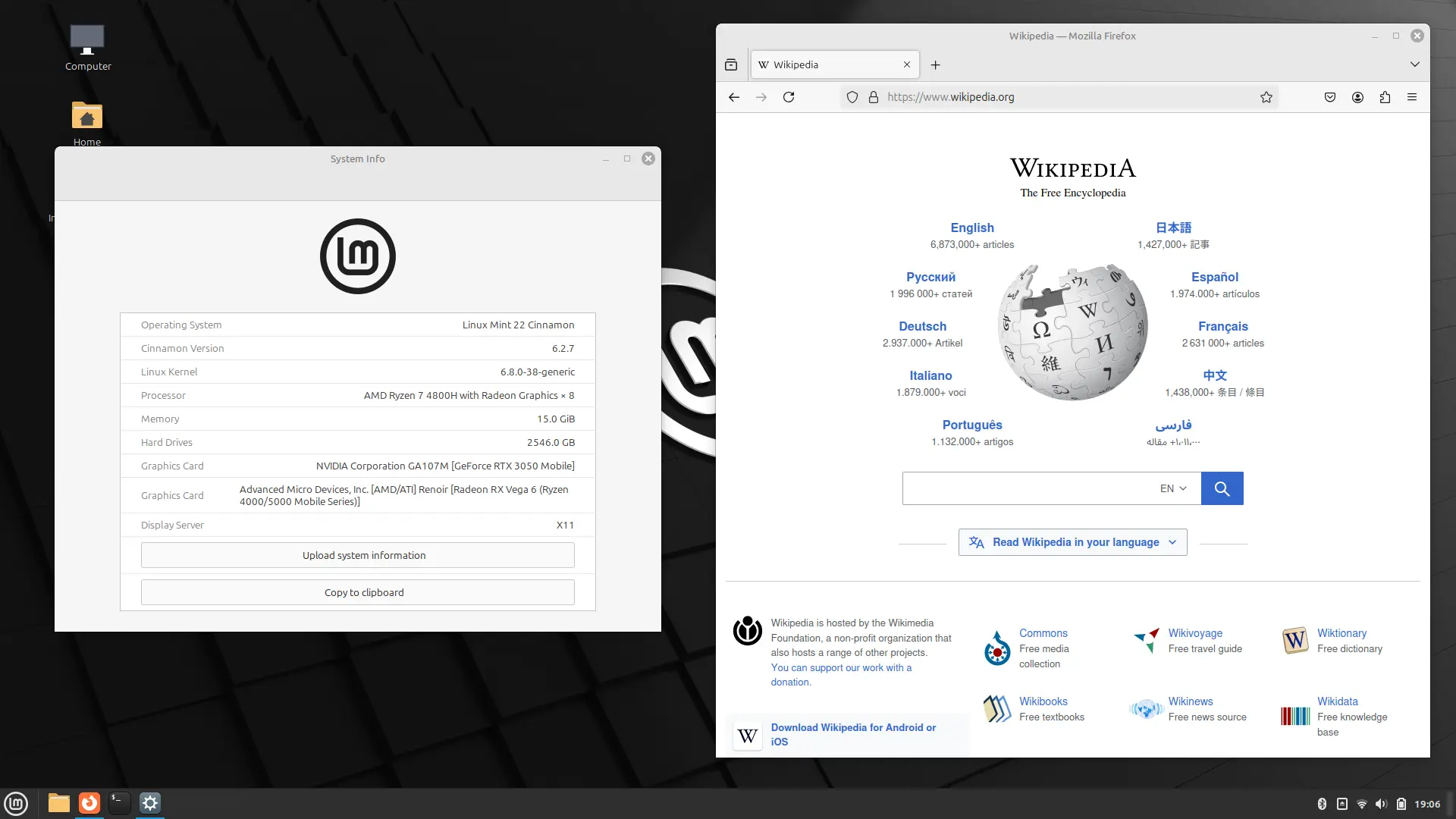
Cinnamon is a desktop environment born in 2011, originally developed for the Linux Mint distribution. Its very existence is tied to the desire to provide Linux users with a traditional and familiar desktop, close to Windows 7 in spirit, at a time when GNOME had radically changed its interface (the move to GNOME 3). Cinnamon therefore takes up the classic codes of Windows ergonomics: a start menu in the bottom left with applications classified, a taskbar with minimized windows, icons on the desktop, and a general dashboard-based organization that will not disorient a Windows user. In a way, Cinnamon is to Linux what Windows 7 was to Microsoft: a sober, accomplished interface oriented toward usage comfort rather than experimentation.
User experience: If you decide to migrate Windows 10 workstations to Linux Mint Cinnamon, your employees will immediately find their habits again. The Cinnamon menu (called the Mint Menu) is very similar to the Windows 7/10 start menu: you find the list of software arranged by category, an instant search field, and shortcuts to personal folders (Documents, Pictures…) on the side. The taskbar displays open applications with their name, exactly as on Windows (which Windows 11 precisely changed by no longer showing the labels by default). The systray at the bottom right groups the status icons (such as the antivirus, the VPN, etc., if present) and the clock. The desktop can hold shortcuts (e.g. "Computer," "Recycle Bin" or files dragged from the explorer). Cinnamon's file explorer (called Nemo) is a fork of the GNOME 2 one; it closely resembles the Windows Explorer: a tree on the left, content on the right, back/forward buttons, and even a clickable address ribbon. All these similarities are intentional, to minimize the learning curve for newcomers to Linux. Indeed, Linux Mint (the flagship distribution using Cinnamon) is often recommended to beginners for this very reason: "you won't feel like you have to relearn everything, it's a bit like an alternative Windows." In use, Cinnamon is appreciated for its balance between lightness and features: it offers enough options to customize (more than XFCE, a little less than KDE), without falling into excess. For example, you can change the theme (Mint provides a green one by default, but also offers blue, grey…), move the bar to the top if you wish, install applets (mini-plugins for the taskbar, developed by the Mint community: weather, calculator, stock indicator, etc.). You can even add desklets (widgets on the desktop, in the manner of the Windows gadgets of the Vista era): an analog clock, a sticky note, a photo frame… —these are touches of customization that Windows 10 had abandoned but that some users like to find again. Overall, Cinnamon gives the impression of a welcoming and ergonomic system, which will not jolt the user, but leaves them the possibility of fine-tuning their workspace.
Comparison with Windows 10: We can almost speak of a functional clone. To an untrained eye, a Cinnamon desktop configured with a Windows theme could pass for Windows 7. Linux Mint goes even further: out of the box, the distribution includes graphical tools to configure certain things as Windows would (e.g. a separate "Update Manager" application, reminiscent of Windows Update; a homemade "Control Panel" named "Control Center" that recalls a bit the layout of the classic Windows panel). The philosophy is to make the transition painless. A few differences nevertheless remain: for example, the Cinnamon menu is a bit more modern than the Windows 7 menu in the sense that it directly integrates an effective search bar to find your programs or recent files. Windows 10/11 also has a search, but one that sometimes caused controversy (Bing integration, slowness). Here, the search is local and instant. Furthermore, Cinnamon does not have the equivalent of the live tiles that Windows 10 offered in its start menu—the Mint team preferred to stick with a static and clear concept, and few users will complain about it. A strong point of Cinnamon against Windows 10: the stability of features. Microsoft has often changed its interface (recall the very different Windows 8, then the return of the menu in Windows 10, then changes again in Windows 11). With Cinnamon, no nasty surprise, the interface stays coherent from one version to the next. This is reassuring for business deployment: employees will not see their interface change overnight during a major upgrade. Finally, in terms of performance, Cinnamon is relatively light: it requires a little more resources than XFCE, but less than GNOME. 4 GB of RAM are enough to be comfortable in most cases. Compared with Windows 10, Linux Mint Cinnamon is far less resource-hungry: user tests show that an old PC (e.g. Core 2 Duo, 4 GB RAM) that lagged under Windows 10 runs smoothly under Mint Cinnamon. The user experience is improved by it, because everything seems to go faster, and what was slow or stuck under Windows (searches, opening large files) can sometimes behave better under Linux. Naturally, this depends on the applications used: if you launch the same web browser on both OSes, the performance will be comparable. But the Cinnamon environment itself is optimized so as not to add unnecessary overhead.
Strengths of Cinnamon:
- Smooth transition from Windows: This is the number-one strong point. Cinnamon was designed "by users coming from Windows, for users coming from Windows." It enormously reduces the learning curve. Your collaborators will be able to very quickly resume their daily tasks because everything is where you expect it: menu button in the bottom left, system tools grouped in a familiar way, contextual right-click… Even the common keyboard shortcuts are mostly identical (Alt+F4 to close, Alt+Tab to switch windows, etc.).
- Modern but familiar interface: Although inspired by Windows 7, Cinnamon has not stayed frozen in 2009. It supports virtual desktops, discreet transition effects, and offers a sober aesthetic that can seem more modern than XFCE. You thus get the best of both worlds: the familiarity of the classic menu, with a few touches of modernity (vector icons, dark mode, etc.).
- Stability and support from Linux Mint: Linux Mint, the distribution that carries Cinnamon, is very popular and has an active community. Cinnamon benefits from regular updates but without disruption, and Mint ensures long-term support for its versions (based on Ubuntu LTS). This makes it a safe choice for professional use where you want a stable environment over several years. Moreover, Mint includes codecs, drivers and conveniences right from installation, which limits post-installation configurations.
- Useful integrated features: Cinnamon embeds a few utilities designed to improve comfort: for example a personal-file backup tool, a granular update manager (you can choose which update levels to apply, handy in business to avoid changes that are too abrupt), or small extras such as the ability to apply Windows themes (the Mint community offers a theme that mimics Windows 10, for example). So if you really want to push the resemblance, it is possible (even if generally you do without it, users get along well with the default Mint style).
- Good overall performance: Cinnamon positions itself as a compromise between XFCE and GNOME. It is light enough to run on average configurations and not saturate the RAM, while offering pleasant visual effects. Many find it responsive and less "heavy" than GNOME, which on standard PCs (say Core i3/i5 with 4-8 GB) gives a fluid experience. For office work, web browsing, etc., Cinnamon will never be the limiting factor for performance.
Limitations of Cinnamon:
- Less customizable than KDE: Although Cinnamon allows adjustments, it is relatively locked into its Windows-like paradigm. You cannot, for example, completely change the menu layout (apart from via themes that stay in the same spirit), nor add very advanced features without going through third-party applets. For an average user this is enough, but a power user might find Cinnamon a bit rigid. The Mint team prioritizes stability over a feature arms race: there are not as many options as on KDE to customize each element.
- Slow evolution: Cinnamon, although younger, evolves cautiously. Some major improvements take time to arrive. For example, the transition to GTK4 (a newer interface technology) was made slowly, which means that in 2025 the Cinnamon interface can at times look less polished than GNOME on certain details (e.g. less refined touch handling, or HiDPI scaling only by whole steps). This conservatism is good for stability, but means that Cinnamon does not quickly adopt the latest UI trends. If your needs include very recent technologies, make sure Cinnamon supports them or consider KDE/GNOME.
- Dependence on Linux Mint (largely): Technically, you can install Cinnamon on any distribution, including Ubuntu, Fedora, etc. (there is even an Ubuntu Cinnamon flavour). However, the most integrated experience is on Linux Mint, because it is their default environment. This may steer you in the choice of distribution (Mint is excellent for the client workstation, but some companies prefer Ubuntu LTS for possible commercial support, or Debian for stability, etc.). Moving away from Mint with Cinnamon can mean a tiny bit more manual configuration (for example, Ubuntu Cinnamon Remix is not yet official in the same way as Xubuntu or Kubuntu). This is not a major limitation, but it is good to know.
- Less suited to those not accustomed to Windows: As much as Cinnamon is great for a former Windows user, for someone coming from the Mac world or who is a complete beginner, the Windows interface is not necessarily the most intuitive. A Mac user might find Cinnamon a bit "old school" compared with GNOME or macOS, and a total novice will not necessarily have a particular affinity with the start menu (some might prefer a more guided approach like GNOME's). So if your collaborators are not mostly Windows defectors, Cinnamon brings no particular benefit for them—it will just be one classic environment among others.
In short, Cinnamon is undoubtedly the ideal desktop environment for an SMB whose staff is used to Windows 10/7 and looking for continuity. It has that reassuring "déjà-vu" feel while freeing the user from the drawbacks of Windows 10 (no forced updates left and right, no advertising notifications, etc.). Many consider Linux Mint Cinnamon to be "the free and open-source Windows 10 we would have liked to have." For your migration project, Cinnamon deserves to be tested if the priority is ease of adoption. Moreover, the French-speaking community around Linux Mint is substantial, so you will easily find help online in case of trouble, which is a plus for an SMB that does not necessarily have a large IT team.
5. i3 – The tiling window manager for advanced users
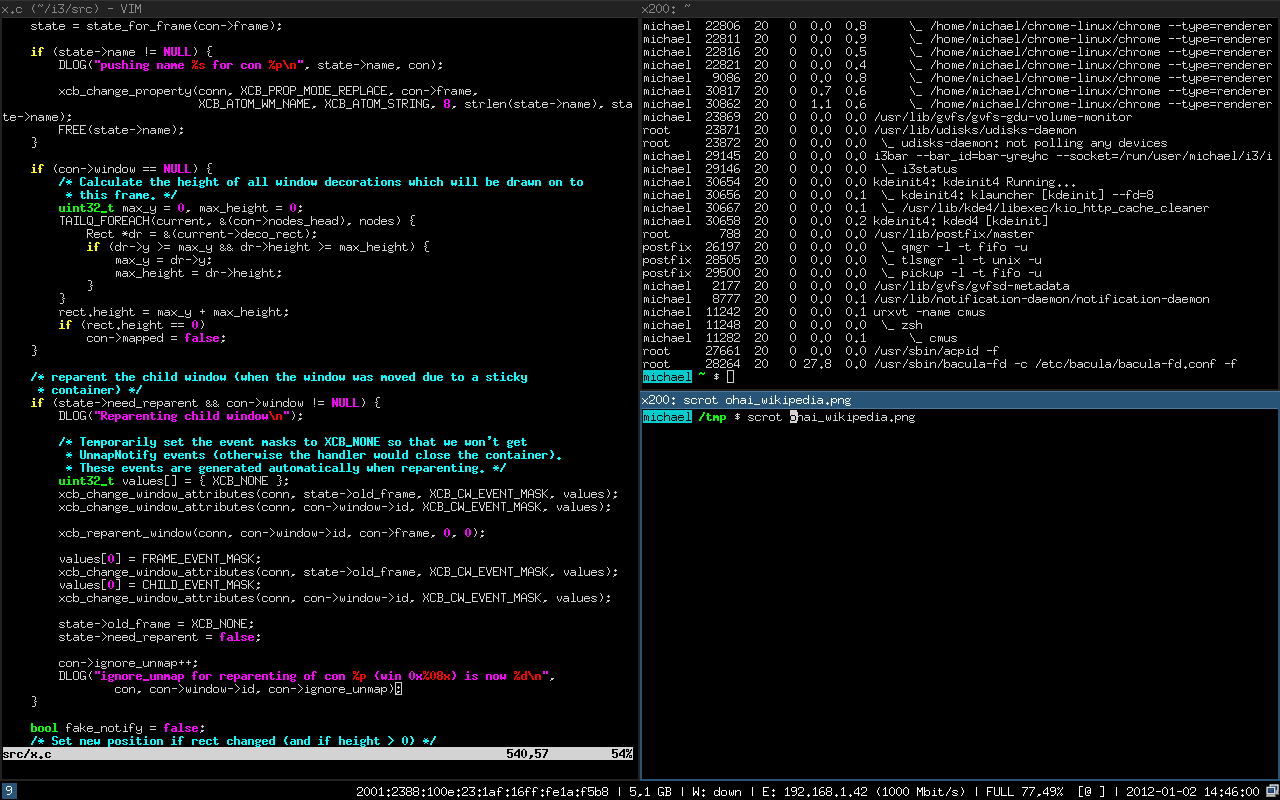
Among the galaxy of Linux environments, there are not only the traditional interfaces with bars and icons: there are also radically different approaches designed to maximize the productivity of expert users. i3 is a perfect representative of this. It is a tiling window manager, which breaks the codes of classic desktops. Where GNOME, KDE, XFCE, Cinnamon are complete environments, i3 focuses solely on managing windows on the screen, optimizing space and the keyboard-driven workflow. It is a tool prized by developers, system administrators and "power user" users who want to get the most out of their machine without burdening themselves with useless interface elements.
How i3 works and its ergonomics: Let's say it right away, i3 is the polar opposite of Windows in terms of ergonomics. By default, when you start an i3 session, you find yourself facing an empty screen with just (possibly) a minimalist status bar at the top or bottom, and no open window. No start menu, no application icon: everything is done through keyboard shortcuts. The logic of i3 is as follows: each new window you open automatically occupies a portion of the screen, and the windows organize themselves into a grid without overlap. For example, you open a terminal (via the Mod+Enter key combination by default): it takes up the whole screen. You open a second one: the screen divides into two halves, each terminal occupying its share. A third one: depending on the configuration, the screen splits into thirds or into a grid, etc. i3 tiles the screen with your applications#::text=inspir%C3%A9%20de%20Wmii%20%20et,4). You therefore never have windows hidden behind others: they are either side by side, or stacked in a tabbed or stacked structure (i3 also allows these modes)#::text=inspir%C3%A9%20de%20Wmii%20%20et,4). To navigate, no mouse is needed: you use shortcuts (Mod+J/K/L/M by default in the base config, inspired by the Vim editor) to move from one window to another#:~:text=Comme%20wmii%20%2C%20i3%20se,5). You can resize the screen portions via shortcuts, close a window with Mod+Shift+Q, etc. At first, it seems harsh, but once accustomed, many enthusiasts assure that they could no longer go back, so much has their productivity increased: no more time wasted manually adjusting the size of windows or searching for a hidden window, everything is visible and accessible via the keyboard. i3 also encourages the intensive use of several workspaces: typically, you assign one virtual screen per task or per type of application, and you juggle between them (Mod+digit to switch to workspace number X).
What distinguishes i3 from classic environments: it is above all the minimalist, keyboard-centric philosophy. There are no superfluous graphical elements: no desktop with gadgets, no window decorations (you can choose to display a small border to spot the active window, but no cumbersome title bar—this saves useful vertical space). i3 is also highly configurable via a simple text file#:~:text=pour%20principale%20caract%C3%A9ristique%20une%20tr%C3%A8s,4). You edit the ~/.config/i3/config file and you can define your shortcuts, the initial layout, automatically launch certain applications at startup, etc. It is clearly a tool for advanced users who like to get their hands dirty in the configuration. In return, i3 does not provide all the conveniences of a complete environment: no applications menu (you use a launcher like dmenu or rofi that brings up a small bar to type the name of an app), no point-and-click control centre (network, sound config, etc., is done via utilities or on the command line), no concept of a complete "dock" or "systray" (even if you can display indicators in the status bar with a little configuration). Often, i3 enthusiasts combine this window manager with a few complementary elements to recover certain functions: e.g. they use Polybar or the i3status bar to have the time, volume, etc. displayed, and a notification daemon like Dunst to display system notifications. You can thus assemble "à la carte" a minimal environment according to your needs.
Is there a commercial equivalent? Neither Windows nor macOS offers anything as extreme by default. However, it can be noted that Windows 10/11 introduced the tablet mode with tiled windows and the Snap Assist, but it remains manual and limited to a few pre-set layouts. macOS allows two applications to be put full-screen side by side, but no more. In reality, i3's tiling approach is closer to what a very advanced user might seek to recreate with utilities. On Windows, tools like PowerToys (FancyZones) let you define custom anchor zones: this is a sketch of what i3 offers, but one that remains mouse-centric. On macOS, some install Amethyst or Yabai, tiling window managers inspired precisely by i3, to fill this gap. In other words, i3 represents a niche of ultra-productive users that no mainstream OS addresses natively, so much so that even on Windows/macOS you have to add third-party programs to get close to it. There is therefore no direct comparison, but you could say that i3 for a knowledgeable user is a bit like going from assisted driving to manual driving: more demanding, but more controllable and potentially more efficient.
Strengths of i3:
- Maximum efficiency for experienced users: Once tamed, i3 lets you accomplish your tasks at lightning speed. Doing everything on the keyboard avoids back-and-forth between keyboard and mouse, and the automatically organized windows save you arranging time. For example, a developer can code in an editor on the left half of the screen, with three terminals tiled on the right to compile, monitor logs and run commands—without any overlap, all visible simultaneously. This kind of workflow is highly appreciated because it makes full use of a large screen or multiple screens.
- Extremely lightweight: i3 is of unbeatable lightness. It consumes barely a few megabytes of RAM and uses very little CPU, since it does not do complex interface drawing. On an old or very modest machine, i3 will literally fly (which also makes it a choice on servers or VMs where you want graphical access without weighing down the machine).
- Total control and customization via config: Because you edit the configuration manually, you can adjust the slightest behaviour. Want the PrintScreen key to launch my_capture.sh? Just add it. Want a specific window arrangement at startup (e.g. always two terminals and a browser launched on predefined workspaces)? i3 allows it via session scripts. This programmability appeals to those who consider their environment a work tool to be optimized.
- No distraction, an optimized screen: The total absence of a visible background desktop (generally you never see the wallpaper because a window always occupies the whole screen) and of visual "gadgets" makes the environment very focused. You don't get lost in notifications or useless icons. Some appreciate this streamlined side that helps to concentrate solely on the active application.
- A technical and active community: i3 users are often passionate people who readily share their configuration files, tips and scripts. There are many examples online for customizing i3, for example adding shortcuts to control Spotify, integrating notifications, etc. The i3WM community also provides detailed documentation and a complete guide that can be read in under an hour—a sign of the relative simplicity of the software itself.
Limitations of i3:
- Steep learning curve: This is by far the least intuitive environment for a beginner. Even a seasoned Windows or Mac user will have to relearn quite a few things: memorizing the shortcuts, understanding the logic of i3's nested containers, configuring elements often via text files. A non-technical average employee would be completely lost in front of an i3 desktop without preparation. So i3 is really only recommended for a knowledgeable audience.
- No "turnkey" environment: With i3 alone, as soon as you want to do something basic (change the volume, connect to Wi-Fi, mount a USB key…), you realize there is no graphical tool provided. You have to either use the command line or add a third-party utility (e.g. nm-applet for the network, pavucontrol for the sound, etc.). In short, i3 requires tinkering with your ecosystem. Some distributions offer ready-made i3 configurations (e.g. Manjaro i3 Edition, or Regolith Linux, which combines i3 with Ubuntu and default configs), which can help to have a minimum of features out of the box. But in business, this means you will need an in-house specialist to set up and maintain this type of environment on the workstations.
- Poorly suited to everyday desktop uses: If the bulk of your work is browsing the web, editing Office documents, taking part in video conferences, etc., i3 brings no major benefit and can even complicate things. For example, switching between several Word documents in i3 can be less easy than with an interface that has visual previews. Moreover, some GUI applications expect a complete environment (e.g. systray integrations, or the use of drag and drop between windows): all this remains possible under i3, but less comfortable than with a traditional desktop.
- Possible rejection by the non-tech-savvy: In a team, if there is only a minority of geek users, putting i3 in place risks isolating them from the rest or creating misunderstanding. You don't want an environment that gives the impression of being "hostile" or too strange for most people. In general, you install i3 for yourself, not for a heterogeneous group of users (except for very specific use cases).
In conclusion, i3 is an extreme productivity tool, reserved for a specific audience already comfortable with Linux and keyboard shortcuts. Its inclusion in our top 5 is justified by its popularity among advanced users (it is often cited as the reference tiling WM). However, in the context of an average SMB, it is unlikely that i3 will be deployed en masse on every workstation—unless your company is composed almost exclusively of engineers or developers who demand it. A more realistic scenario is to have a few "power user" employees who adopt i3 as an option, while the bulk of the workforce uses a more standard environment such as KDE, Cinnamon or GNOME. This can be encouraged to a certain extent (after all, if a system administrator is more efficient under i3, why not), but it will require differentiated support because their interface works differently. For most companies, i3 therefore remains a curiosity to know about—if only to show the flexibility of Linux—but not the default recommendation.

Practical advice for migrating to Linux in a Quebec SMB
Migrating a desktop infrastructure from Windows 10 to Linux is a major project that requires good human and technical preparation. Here are a few concrete tips, drawing on the environments presented, to ensure a successful transition in the context of an SMB or a professional organization in Quebec:
1. Choose the environment based on your user audience: Analyze the profile of your employees and their familiarity with computers.
- If your users are mostly accustomed to Windows for years and not very inclined to change, Cinnamon or KDE Plasma are wise choices. Cinnamon offers the interface closest to Windows 7/10, minimizing the shock of change. KDE, for its part, can also be configured to look a lot like Windows 11 while bringing more features—it is well suited if you have a few advanced users among the masses, or if you want to give a feeling that is both familiar and improved.
- If some employees use Macs or are very sensitive to streamlined design, consider GNOME. Its modern approach may appeal to them and they will not have the reflex to look for a start menu that does not exist. GNOME can also be introduced if you want to deliberately give a fresh coat to the user experience (for example, a young and flexible team might appreciate the "cutting-edge" side of GNOME).
- For staff uncomfortable with computers in general (an accountant nearing retirement, etc.), a classic and simple environment like XFCE can be relevant. There is practically nothing to explain because it is the typical Windows operation of the 2000s: these people will very quickly find again how to launch their program and will not be disturbed by animations or changes of concept. XFCE is also recommended if you know in advance that your PCs are old or low-powered, because it will avoid any slowdown.
- i3 and specialized window managers should only be offered to willing tech enthusiasts. It is better not to impose it at all, but possibly to make it available on demand for particular workstations (e.g. a software developer who swears it will boost their productivity). In that case, make sure there is still a more classic environment installed in parallel on the machine, in case the user changes their mind or to facilitate technical support (you can always switch from i3 to a GNOME temporarily for graphical troubleshooting, for example).
2. Test upstream with a small pilot group: Don't switch everyone over at once. Select a few pilot users (if possible, representative of the different departments or skill levels) and offer them the chance to try Linux on their workstation or a test workstation. Take their feedback on the ergonomics into account: do they find their way around, what difficulties do they encounter? This feedback will help you adjust the chosen environment or its configuration. For example, maybe the pilot group on GNOME will ask for a "Minimize" button on the windows: you can then deploy the corresponding extension or train the users in the GNOME philosophy (using Activities rather than minimizing). In Quebec, where the emphasis is on social dialogue in the workplace, involving your employees in the migration process is a guarantee of success: they will feel listened to and players in the change.
3. Plan for training and support: As intuitive as KDE or Cinnamon may be, there will always be little habits to change. Organize short training workshops (for example, a one-hour session "Getting started with your new Linux workstation") to go over the basics: how to open your applications, where your files are, how to connect a printer, etc. Emphasize the equivalences: "Here is LibreOffice that replaces Microsoft Office, here is the file manager that replaces the Windows Explorer," etc. Prepare, if possible, a small written guide or video clips in French that employees can consult. In Quebec, the language barrier is less of a problem because most Linux environments are available in French in full (you just have to install the language packs). Be sure to enable the French interface and the regional formats (AZERTY keyboard or Canadian multilingual QWERTY, 24h date/time format, etc.) so that everything is consistent. This greatly contributes to ergonomics: an environment in the user's language avoids much confusion.
4. Capitalize on Linux's strengths to motivate the troops: Communicate internally about the benefits they will derive from it. For example: no more virus problems (Linux is little targeted by common malware), more transparent and less disruptive updates (no more forced reboots from Windows Update during a presentation), a faster system that will give a second youth to the computers, etc. If you opt for KDE or Cinnamon, highlight the additional features that will make their lives easier: "you will have an improved screenshot tool," "you will be able to customize your workstation more freely, for example putting the bar at the top if that suits you better," or "you'll see, the application search is faster and without ads." Showing these advantages concretely can create enthusiasm. For example, demonstrating on a pilot workstation that opening a large spreadsheet is done in the blink of an eye under Linux when they were used to waiting can leave a lasting impression. By emphasizing the improvement of the user experience, you turn the migration into an opportunity rather than an imposed constraint.
5. Plan the management of business applications and equivalences: The interface is only the visible part of the iceberg. Make sure your critical business applications work under Linux or that there are alternatives. For example, if your SMB uses an Adobe suite or a Windows accounting program with no equivalent, this can complicate the transition. Fortunately, many common tasks have their open-source solutions (LibreOffice for office work, Gimp/Inkscape for graphic creation, etc.). For those that don't, consider solutions such as Wine (which lets you run certain Windows programs on Linux) or virtualization (a Windows virtual machine for the stubborn application). Inform users well about these application changes, because the ergonomics of an application can impact their daily life as much as the desktop environment itself. For example, LibreOffice on Cinnamon will remain familiar because the LibreOffice interface recalls "classic" Microsoft Office, but Gimp can disorient a graphic designer used to Photoshop. You may need to plan specific training for these tools. The goal is that no professional task becomes impossible or slower after the migration, otherwise employee buy-in would suffer.
6. Take advantage of the flexibility to adapt each workstation if necessary: Unlike Windows, which offers a uniform interface for everyone, Linux lets you mix and match environments according to needs. You are not obliged to have a single solution for everyone. For example, you could very well deploy Cinnamon on the classic office workstations, put XFCE on an old laptop used in the workshop (so it stays performant), and install KDE on the designers' workstations who will appreciate its customization, or GNOME on touchscreen reception stations if you have any. Linux distributions allow you to install several environments in parallel: the user chooses at login the one they want to use. You can thus imagine a transitional phase where an employee has the choice between two environments (e.g. KDE and XFCE) while deciding which one they are most comfortable with. This flexibility involves no additional cost, just a little disk space. On the other hand, from a support standpoint, it is ultimately simpler to standardize on one or two environments at most, to avoid dispersion. Find the right balance between letting people choose (a satisfaction factor) and maintaining consistency (a technical-control factor).
7. Anticipate support needs and internal documentation: It is recommended to have within the company at least one person or team that knows Linux well to help the others in case of a problem. If you do not have this expertise in-house, you can call on a local service company specialized in free software (some exist in Quebec, and some offer support in French). Set up a ticketing system or point of contact for employees who run into trouble on Linux. For example, on migration day, ensure a physical technical presence in the open space to quickly troubleshoot those who can't find a given function or have a device that won't install. Document the frequent use cases: "How to install a new printer under Linux," "How to connect to the corporate network via VPN under Linux (which tool to launch)," "Where did my email program go," etc. A small wiki or PDF guide distributed to everyone can answer common questions and reduce the anxiety related to change. Don't hesitate to use humour or pedagogy in these documents to defuse the drama (e.g. a box "Ctrl+Alt+Del no longer serves to open the Task Manager, here's why…"). An accessible, jargon-free style will be appreciated by a non-technical audience.
8. Leverage the local community and external resources: The beauty of the Linux world is the richness of its community. In Quebec, there are Linux user groups (LUGs), online forums (e.g. quebecoss.org or the French-language section of linuxquestions.org), and even events (install parties, etc.). Encourage your IT team or your curious users to refer to them to deepen their knowledge or solve a specific problem. Often, someone somewhere has already encountered the question you are asking—and the answer is a Google search away. Of course, be sure to validate the solutions found before applying them in production, but as a rule the online documentation on GNOME, KDE, etc., is abundant. In French, many tutorials and videos now exist, which makes understanding easier. Include in your internal "bibliography" a few useful links (for example, the official manual of the chosen environment, or a French-language community site). Your more curious employees will be able to partly self-train thanks to this.
9. Security and updates: Under Linux, security updates are regular but finely controllable. You should establish an update policy: either centralized (via a local package server or a solution such as Landscape, etc.), or with user autonomy if you trust each person. The advantage for users is that they will no longer have forced interruptions as under Windows: a notification message can inform them that updates are ready and they can choose the moment to reboot if necessary (and often it is not necessary immediately because the core of the system can stay operational). Communicate on this point because it is a very perceptible positive of the Linux experience: "you will no longer be interrupted in the middle of your work by a forced reboot." On the security side, also reassure people that Linux is entirely suitable: disk encryption possible (LUKS), firewall (often built in via ufw), fast updates in the event of vulnerabilities, etc. For SMBs that must comply with certain standards, mention that Linux is used in many critical infrastructures, a guarantee of seriousness.
10. Hardware considerations specific to Quebec: The Quebec climate sometimes imposes particular conditions (e.g. very cold in winter—fortunately with no direct impact on an OS, or the prevalence of multilingual keyboards). Be sure to properly configure the Canadian French keyboards if that is your standard, and to test things like the Canadian AZERTY layout or the insertion of accented characters for French. Linux supports this but it is better to verify that your environments are well localized (for example, in KDE, properly select the ibus or fcitx input method if needed to have all the special accents). Moreover, if you use a lot of software specific to the Quebec market (government tools, etc.), check their compatibility. Some web services only work with Internet Explorer/Edge—those will have to be tested with Firefox or Chrome under Linux (often it works, sometimes you have to adjust the user-agent). The Quebec context is also sometimes a bilingual one: Linux handles French/English alternation without any problem, so on that front no worries (you can switch the interface language from one user account to another easily to satisfy everyone).
By following these recommendations, your transition to Linux will go under the best conditions. Don't forget that it is a cultural change as much as a technical one: be patient, attentive to feedback, and ready to adapt the plan if necessary. Over time, your employees will no doubt discover the advantages of the Linux world, and many will no longer want to go back—especially when they notice that their workstation remains performant, secure, and under their control even years later, where Windows 10 would have come to a sudden stop.
Conclusion
The move from Windows 10 (now end of life) to Linux is an opportunity to modernize your IT fleet, achieve savings and gain technological autonomy. As we have explored, the choice of desktop environment is central to ensuring user adoption. Between GNOME, the modern desktop inspired by the Mac, KDE Plasma, the flexibility champion reminiscent of Windows 11, XFCE, the discreet lightweight that revives old PCs, Cinnamon, the friend of Windows users in search of familiar landmarks, and i3, the ultra-efficient option for experts, there is necessarily one or several environments that match your context.
Adopting Linux in a professional setting does not mean sacrificing ergonomics: on the contrary, today's environments are user-friendly, attractive and designed for productivity. They benefit from years of maturation and from the feedback of millions of users around the world. Moreover, the free-software community as well as many companies support these projects, guaranteeing their longevity and continuous improvement. In 2025, using Linux on a workstation is no longer an eccentricity: it is a mature choice adopted by organizations of all sizes, including large companies and governments.
Whether you are a service SMB, an architecture firm, a public body or a tech startup, Linux can bring you increased stability and control over your computing. You will be able to extend the lifespan of your equipment, reduce licensing costs, and offer your employees a high-performing work tool which, after a small learning phase, will often prove more pleasant (no more constraints imposed by the vendor, room for the freedom to customize and the sobriety of the interfaces). Not to mention the security aspect: with an up-to-date Linux, the risk of malware is drastically reduced, and the confidentiality of your data is better protected (no hidden telemetry to a software giant).
Ultimately, the success of your migration does not depend solely on technology, but also on human support. By choosing the right desktop environment and involving your collaborators in this evolution, you will make this change a success. Windows 10 may have bowed out, but your PCs will continue to live and provide service thanks to Linux and its ecosystem of desktop environments suited to everyone. All that remains is to take the plunge and write this new chapter, taking advantage of the experience gained by so many others before you in the free-software community.
We hope this overview of the main Linux environments and our advice have enlightened you and given you the urge to try the adventure. Linux offers a palette of user experiences: it's up to you to find the one that will make your business shine in the post-Windows 10 world!
Sources and bibliography
- Le Comptoir Open-Source – "Les Meilleurs Environnements de Bureau Linux à Utiliser en Entreprise" (October 10, 2024). A French-language article presenting Cinnamon, KDE, GNOME, XFCE and their advantages in a professional setting.
- Wikipédia (fr) – Information pages on the cited environments and software, notably "I3 (logiciel)" for the i3 window manager.
- ComputerAdvice247.com – "MacOS vs. Linux GNOME: Comprehensive Comparison" (blog, n.d.) for a point-by-point comparison between the macOS interface and that of GNOME.
- Reddit (r/kde) – "It blows my mind how much better Plasma is than Windows nowadays" (discussion, 2021) for user feedback on the features of KDE Plasma vs Windows 11 (e.g. no ads in the menu, integrated tools like Spectacle and Dolphin).
- XDA Developers – "4 features in KDE Plasma that Windows 11 users are sorely missing" (2021) – cited via WindowsForum for the points on the resizable bar, KRunner, Dolphin's split-view, etc., compared with Windows 11.
- Medium.com (@michaelswengel) – "The End of Windows 10 Support Could be a GREAT Thing for Linux" (Nov. 2025) for the context of the end of Windows 10 support and the opportunity for Linux (business advantages, mention of Linux Mint).
- LinkedIn Pulse (Michael Wittek) – "Making the Switch from Windows 10 to Linux Mint Cinnamon: A Friendly Guide" (July 30, 2025). A detailed English-language guide on migrating to Linux Mint Cinnamon, highlighting Cinnamon's similarity to Windows 10 and the performance gains on existing hardware.
- Opensource.org (OSI) – "End of 10: The Open Source alternative to forced obsolescence" (May 28, 2025). Announcement of the "End of Windows 10" campaign promoting Linux to avoid waste, with 5 reasons to switch to Linux (no cost, respect for privacy, durability, support, user control).
- Opensource.com – "5 reasons the i3 window manager makes Linux better" (Ricardo Gerardi, 2018) to better understand the advantages of i3 in terms of minimalism, keyboard use and screen-space savings.
- Official KDE documentation – "KDE for Gamers – Steam Deck runs KDE Plasma" (kde.org) confirming the use of KDE Plasma on Valve's Steam Deck console.
- Windows 10 – Wikipedia (en) – information on the end of Windows 10 support on October 14, 2025.
- Forum Ubuntu-fr – Discussions by French-speaking users comparing GNOME vs KDE, etc., for various practical opinions (e.g. customizing KDE to mimic GNOME or Windows) – (indirect references via search results).
- Linux Mint & Ubuntu community sites – guides and forums on configuring Cinnamon, installing variants (Ubuntu Cinnamon Remix), etc., to validate the technical feasibility of some of the configurations mentioned (e.g. the coexistence of several environments).
(Sources consulted in December 2025. Links and references available and verified as of that date.)